

 View Cart
 sales@dataq.com
 330-668-1444
DATAQ Instruments Developer Network
MatLab® Resources
 |
Download Example Programs in zip archive for the DATAQ .NET Class and MatLab (DI-145/149/155/245 products ONLY) |
 |
START HERE! If you are new to using .NET Controls in MATLAB, take a look at our step-by-step tutorial titled "Using DATAQ .Net Controls in MATLAB." This tutorial explains in detail how to port previously recorded data from a .wdq file into a MATLAB matrix with the WinDaq File Format .Net class. |
|
Download Example Programs for ActiveX Controls and MatLab (32-bit ONLY) |
|
START HERE! If you are new to using ActiveX Controls in MATLAB, take a look at our step-by-step tutorial titled "Use DATAQ ActiveX Controls in MATLAB." This tutorial explains in detail how to use the ReadDataqFile Control to port data from a WinDaq file into a MATLAB® matrix. |
 |
Need Help? Download the ActiveX Help file or post a question to the Developer Support Forum. |
How do I use the DATAQ ActiveX controls in MATLAB®?
MatLab has a COM client function actxcontrol that allows you to create an ActiveX control in a figure window. The type of control is determined by the progid:
| DATAQ Control | Progid |
| DataqSDK | DATAQSDK.DataqSdkCtrl.1 |
| DQChart | DQCHART.DQChartCtrl.1 |
| ReadDataqFile | DATAQFILE.ReadDataqFileCtrl.1 |
| WriteDataqFile | DATAQFILE.WriteDataqFileCtrl.1 |
| WinDaq | WinDaq.WindaqCtrl.1 |
| To see a list of all ActiveX controls, type h = actxcontrolselect in MATLAB® screen. | |
Syntax for actxcontrol:
dataqcontrol = actxcontrol('progid', position, fig_handle, event_handles, 'filename')
The returned object (dataqcontrol in the above example) is the default interface for the control in MATLAB®.
For example, the line below would produce a figure window with the DQChart control on it, 10 pixels from the bottom left corner, and 400 X 400 width by height:
dqchart = actxcontrol('DQCHART.DQChartCtrl.1',[10,10,400,400])
To learn more about actxcontrol, consult the MATLAB® help documentation under MATLAB>>External Interfaces Reference>>COM Functions>>COM Client Functions
In the table below, replace <dataqcontrol> with the name of your created object to find out information about the controls.
| Control Information | MatLab Syntax |
| List Control Properties | dataqcontrol.get |
| List Control Events | dataqcontrol.events |
| List events attached to listeners | dataqcontrol.eventlisteners |
| List Control Interfaces | dataqcontrol.interfaces |
| List Available Methods | dataqcontrol.invoke |
| Release COM Interface | dataqcontrol.release |
| Delete COM Control | dataqcontrol.delete |
When your control is no longer needed, use the release and the delete function to reclaim the memory used by it.
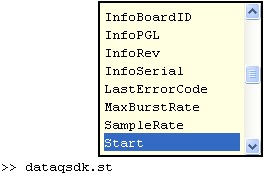
Use the Tab key to display the available control options:
Event Handlers
You can register your event handler functions either:
- When you create the control with actxcontrol:
Use a cell array for the event_handler argument, with each row of the array specifying an event and handler pair:{'event' 'eventhandler'; 'event2' 'eventhandler2'; ...} - Any time after the control is created using registerevent:
In the example below you need to create an M-file function for each event with the same name as your registered event. For example, when the FileError event triggers it will call the dataqfileerror.m file function.readdataqfile.registerevent({'FileError','dataqfileerror'})
Set Properties
MATLAB Syntax to set properties: set(h, 'propertyname', value[, 'propertyname2', value2, ...])
Example: set(dataqsdk, 'DeviceDriver', 'DI101NT.DLL')
Example M-file MATLAB® programs
DATAQ has a variety of example M-file programs available for download. You need to first add the directory where the file is located to the MATLAB® path using the addpath function: addpath('C:\matlabR14\work')
After you add the path, you can run the example programs just by typing the name of the M-file at the MATLAB® command prompt. For example, ReadDataqFile.m can be run by typing: ReadDataqFile