

 View Cart
 sales@dataq.com
 330-668-1444
 RSS Feeds


Using the DI-159 PLC on a Mac Computer
Just follow these simple steps to use your DI-159 PLC on a Mac computer. In these instructions we were using a Mac Book Pro with OS X Version 10.8.3.
- Plug the DI-159 into a USB port on your Mac computer.
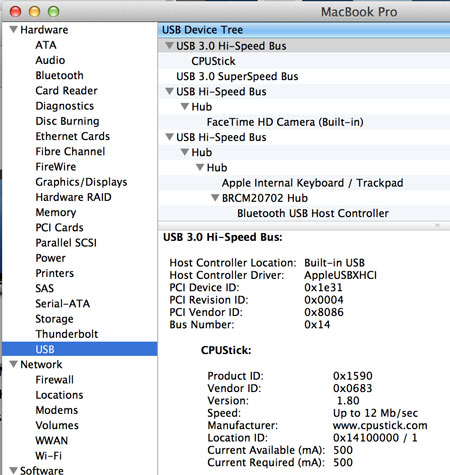
- Find the USB connection between your MAC and the DI-159
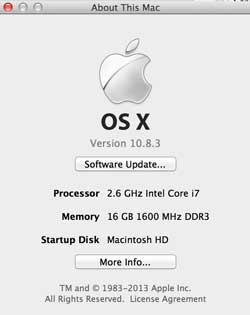
- Go to “About This Mac”
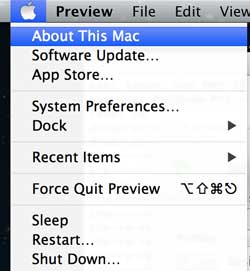
- Click on the “More Info…” Button
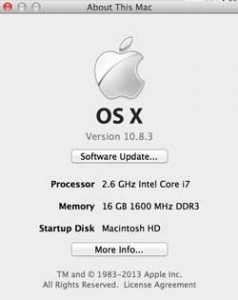
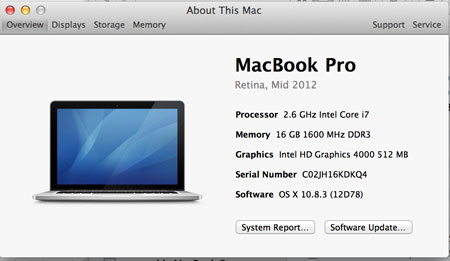
- Click on the “System Report…” Button
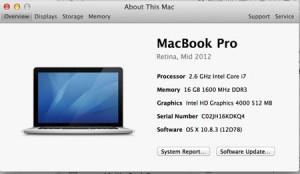
- Go to Hardware > USB to view the location.
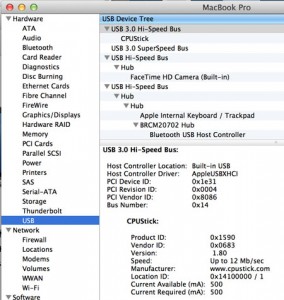
- Go to “About This Mac”
- Start a Terminal session. Terminal is the MAC application, located in the Utilities folder, that provides access to the Unix side of MAC OSx. Hint: If you don’t know how to start a terminal session use the “Spotlight” feature and run a search for “terminal.”

- Find the system-level device name
- Use the command shown below:

- The device name matches the Location ID
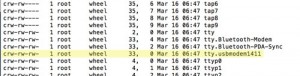
- Use the command shown below:
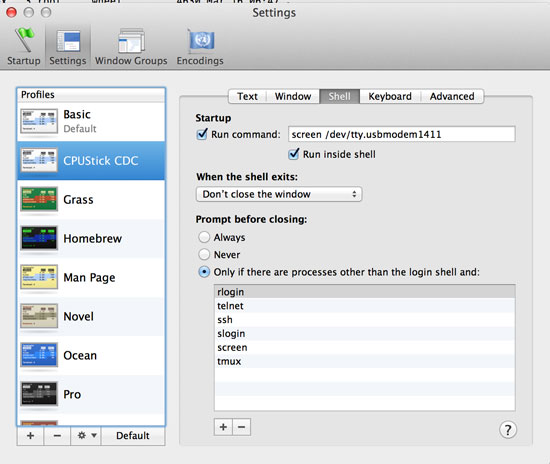
- Create a Terminal SHELL.
- Go to Terminal > Preferences
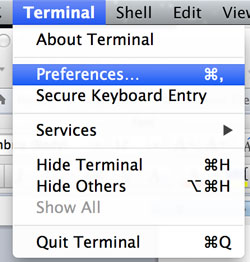
- Click on the “Shell” tab. For the Run command: Enter “screen /dev/system-level-devicename” (here tty.usbmodem1411).
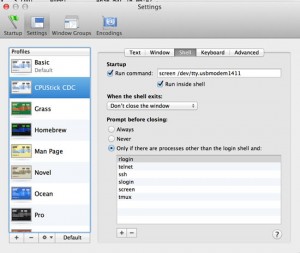
- Go to Terminal > Preferences
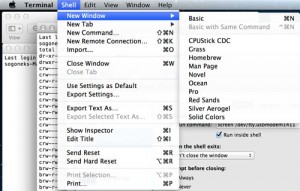
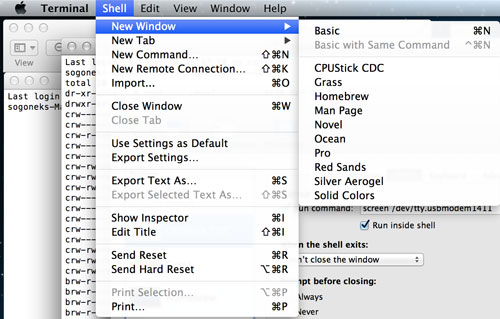
- Run the new terminal shell (Shell > New Window > CPUStick CDC).
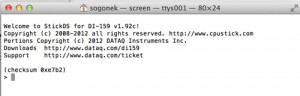
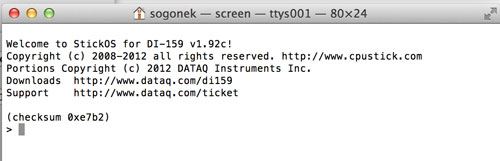
- Sample programs can be copy/pasted from text files or load the text file directly inside the Terminal program and save it to the device. A correctly connected DI-159 inside the terminal program is shown below.



Go to the DI-159 PLC product page to learn more.
Of course, you could always use the Windows emulator on your MAC and install the Windows drivers and DATAQ Terminal Emulator: Download the Windows utilities for the DI-159 (device driver and terminal program)
Follow Us


 Categories:


One Comment
RFCommunicationtoPLC
Hello you all,
That’s a very good update. Have you thought of wireless communication for Programmable Logic Controllers%3
[WORDPRESS HASHCASH] The poster sent us ‘0 which is not a hashcash value.